
What is phishing?
Phishing is a type of scam where a criminal pretends to be a trusted person or organisation in an attempt to persuade you to do something.
They may ask you to click a link, open an attachment, provide personal information, make a payment or sign in to your account.
Steal passwords
Steal money
Install malware
Compromise accounts
01 – Check the sender’s email address
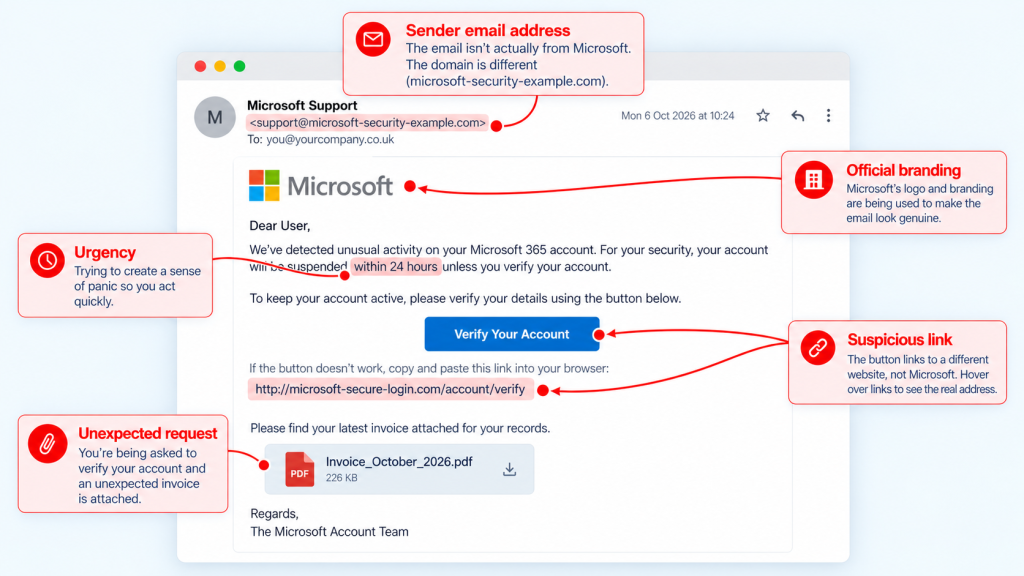
An email can appear to come from someone you trust while actually being sent from an unusual address.
Look at the full email address, especially the domain after the @ symbol. For example:

⚠️ A genuine Microsoft email is unlikely to be from @microsoft-secure-login.com
02 – Be suspicious of unexpected requests
Ask yourself whether you were actually expecting the email.
Unexpected invoices, shared documents, password resets and requests to change bank details are commonly used as bait.
If a request seems unusual, verify it another way before taking action.
03 – Don’t let urgency make the decision for you
Phishing emails often try to create a sense of panic.
You might be told your account will be suspended, a payment is required immediately or that you have 24 hours to verify your account.
If an email is trying to rush you, slow down and check it carefully.
04 – Check links before clicking them
The text displayed in an email doesn’t always show where a link actually goes.
Hover over links on a computer to see the real address and check the domain name. If you’re unsure, don’t click the link.
Instead, visit the organisation’s website directly.
05 – Be careful with attachments
Unexpected attachments can contain malicious software.
Be cautious with invoices, purchase orders, scanned documents or delivery information you weren’t expecting.
If you’re unsure, contact the sender separately and ask.
06 – Watch for fake login pages
Many phishing emails link to convincing copies of sign-in pages.
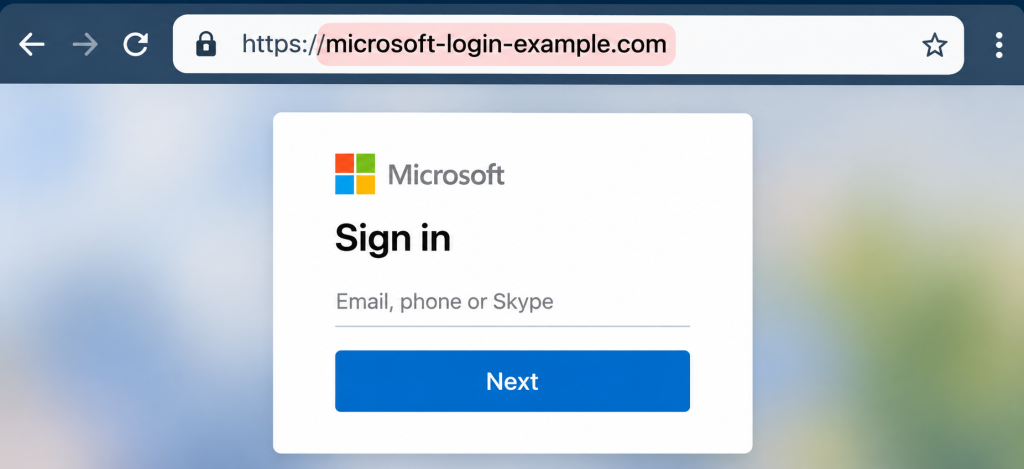
They can look almost identical to the real thing, but the website address in your browser may be completely different.
Always check the address before entering your password. If you’re unsure, close the page and access your account through your normal route.
REAL EXAMPLE
Would you enter your password here?
This is a fake Microsoft 365 login page.
It looks genuine, but the website address is not microsoft.com.
07 – Be wary of QR codes
QR-code phishing, also known as quishing, is increasingly common.
Scanning a QR code can take you to a fake login page or download malicious content.
Treat QR codes in unexpected emails with the same caution as links.
08 – Don’t rely on spelling and grammar
Modern phishing emails can have perfect spelling and professional language.
Instead, focus on whether the request makes sense and whether you can verify it independently.
A professional-looking email isn’t necessarily a genuine email.
09 – Never approve an unexpected MFA request
Don’t approve a Microsoft Authenticator notification, enter a verification code or provide an MFA code over the phone if you weren’t expecting it.
If you’re receiving unexpected authentication requests, somebody may already have your password.
Change your password and contact your IT support provider.
10 – If you’re unsure, verify it separately
Don’t rely on the email itself. Visit the organisation’s website or app directly, or call using a trusted telephone number.
If it’s from a colleague and the request seems unusual, speak to them. Don’t use contact details contained within the suspicious email to verify the email.
Stop. Check. Then click.
A quick checklist
Be cautious if an email:
- asks you to sign in unexpectedly
- wants you to change bank details
- contains an unexpected attachment
- pressures you to act immediately
- asks you to scan a QR code
- asks for a password or verification code
- triggers an MFA request you didn’t initiate
One warning sign doesn’t automatically mean an email is fraudulent — but it’s a good reason to stop and check.
⚠️ Already clicked the link?
Don’t ignore it. Acting quickly can make a big difference.
Entered your password?
- Change it immediately and contact your IT support provider.
Approved an MFA request?
- Contact your IT support provider immediately. Someone may have accessed your account.
Opened an attachment?
- Stop using the device for sensitive activity and contact your IT support provider for advice.
Before you click it, ask us.
Not sure whether an email is genuine? We’re here to help.
If you’ve received something suspicious, it’s always better to check before clicking.
At SCIS UK, we can help you:
Identify suspicious emails, links and attachments.
Check potential Microsoft 365 security threats.
Take action if you’ve already clicked something suspicious.
Whether you’re a business or home user, we’re here to help. A quick check now could save you a lot of trouble later.